
GUI FAQ & troubleshooting for UVR (PT. 2)
Start with reading information about Roformer patch and its common issues section
- “If you enable the "enable help hints" setting” “you can hover parameters with the mouse, [and] you'll get [settings] info hints (...) if [it’s] not activated by default)”
- See the section above for UVR installation and usage guides
- It's not guaranteed to run on older versions of Windows than 10, so do it at your own risk.
- If you see duplicated models on the list in UVR5, click refresh
“3.8.10 is the last [Python] official installer that works on Win7, however I was able to find an unofficial [Python] installer from GitHub for 3.10.13 on Win7 and that seemed to do the trick! No more error on load of UVR”
Here are all the versions:
https://github.com/Alex313031/Python-Win7
- You may encounter “Encoding failed. ffmpeg/avlib returned error code: 3221225477” while using Manual ensemble and output set to mp3 on Windows 7
“Think I've found my problem. I used a full build of FFMPEG instead of the essentials one.”
- “If anyone needs the solution to running it on [MacOS] Mojave+ go to the Releases page on GitHub scroll down to 5.5, under assets grab UVR 5.5 x86_64_9_29.dmg. Confirmed working now on my Mojave machine. Thanks to @ambresakura on GH”
- Installing the GUI outside the default location on C:\ drive, esp. with older versions may result in e.g. startup issues (although they seem to be fixed in 5.6 and Roformer patches). If you lack space on C: drive, create your folders using Symlink Creator to redirect the content to some other disk, keeping the C:\ location in the Windows file system logic.
Or else, copying only Ultimate Vocal Remover\gui_data folder to the C:\ drive while keeping the GUI installation on another drive might work as well. Although there seem to be no issues with the latest stable 5.6 opened from a different location than default, and standalone Roformer patch installed in a different location.
- UVR requires minimum 3GB of disk space to start any task, but it turned out whether it's being read from C:\ or any other partition, actually depends on the location from where you start UVR (and it can even be a shortcut leading to symlinked location).
So when you have UVR installed in the default location on C:, you must have 3GB of free space on C:, and it also applies if you use symlink for that specific location from some other real location - if you run it from the shortcut leading to C:, it will be read from C:, but if you start UVR directly from the real location other than C:, the free space will be read from the other partition. That way you can circumvent the free space error, because at best only a couple hundred of MB is actually required in the UVR location, and the rest is pagefile, which can be located somewhere other than C:\ or UVR location.
The same happens on Linux - “it reads from root even if you have /home/ mounted on a different drive.”
- Be aware that your system may occasionally become unresponsive on slow 2 and 4 core configurations with GPU Conversion disabled while separation is progressing (although, you can set all the priorities in Process Lasso to Idle, and it will be saved for future use).
- The provided directory is not writable or read only
Run UVR as admin, or potentially changing privileges to the output/input folders to everyone might help too (alternatively use “Context Menu” for it described here)
Q: Why Vocal Dereverb Options are greyed out. I can't select more, only "main vocals"
A: This option removes reverb from a vocal stem.
You must have the "UVR-DeEcho-DeReverb" VR Arch model installed to use this option.
- Matchering doesn’t work correctly with Opus files (error occurs)
- Matchering doesn’t work correctly with mp3 files on Mac (at least x86, error occurs)
- Matchering input audio file length limit before error occur is 14:44 or 15 minutes
- Matchering and Manual Ensemble use only CPU and are fast
- “Download speed of models via Download center was really slow for no apparent reason, like some users have already reported.
I've reduced [the] UVR[’s] window while the download was ongoing and the download speed fastly improved instantly.
I've restored the window, download speed was again instantly slowed down. Re-reduce UVR window, download speed back to normal again…”
- Official UVR requirements from GH page:
Nvidia RTX 1060 6GB is the minimum requirement for GPU conversions.
Nvidia GPUs with at least 8GBs of VRAM are recommended.
Intel Pentium might be unsupported, but AVX or SSE4.2 instructions are not required, so even newer C2Q like Q9650 with SSE4.1 will suffice.
- 2GB VRAM GPUs had some issues even on CPU, maybe it's fixed already
- Official minimum RAM requirement is 8GB, although it works correctly on 6GB RAM too. With 4GB RAM you can run out of memory on longer tracks (probably fixed in many cases in the v 5.5 and newer - you’re able to separate Roformers on GPU on 4GB VRAm with 2,5s chunks).
- As from new Nvidia GPUs, something like RTX 3050 (8GB) is a good, cheap choice for even the heaviest processing and is (theoretically) equivalent to Colab's Tesla T4 for CUDA computing power (but it's not really enough for training, of course, and in Colab slower like 3 times). But watch out for smaller 4GB laptop variants, as they can be more problematic.
But if you separate a lot using Rofomers, definitely consider something better (look for as menu CUDA cores as possible)
(troubleshooting continues later beneath)
CPU/GPU performance in UVR
- The higher the total amount of CUDA cores for Nvidia GPU, the faster separation in UVR
- AMD and Intel ARC GPUs using OpenCL are slower in this separation task than CUDA used in Nvidia GPUs. So it’s safe to say that Nvidia GPUs from the same performance segment will be most likely faster for separation.
- Min. 4GB VRAM GPUs tested (with some yaml tweaking for Roformers described below), On AMD, 16GB VRAM recommended (so no modifications are required).
Min. NVIDIA Maxwell/900 series GPUs/compute compatibility 5 is the minimum requirement (at least NVIDIA GT 700 series and older are unsupported returning CUDNN_STATUS_NOT_INITIALIZED).
For AMD, at least RX 4GB models tested (not sure about R9 200 4GB GPUs - either if on newer modded Radeon-ID drivers and/or with downgraded DirectML.dll attached with your drivers, copied to UVR\torch_directml folder)
Intel was confirmed to work with ARC GPUs, and Xe integrated graphics (e.g. Tiger Lake 2021) with MDX-Net HQ (v2) models.
RTX 5090 is not yet supported in official UVR packages, you can use OpenCL (DirectML) in options instead (slower).
2GB cards will probably cause issues, and 4GB VRAM too - at least on certain Roformer models and settings (unless dim_t equivalent of chunk_size is set to 301/201, but 201 might have a bit of audible audio skipping at times - see here later below for dim_t>chunks_size conversion)
- Not meeting these requirements, you’re forced using CPU processing, which is very slow - even Ryzen 5950X is slower than 1050 Ti in this application, and 1700X is slower by double than even 940M.
- Since the last updates you can also use AMD/Intel GPU, with separate installer with OpenCL support (most likely min. requirement is GCN or Polaris architectures and up - HD 7XXX and RX 4XX, but even 4GB variants may crash on certain settings).
- Old drivers for GCN GPUs might fail using GPU Conversion option. Consider using Radeon.ID drivers or using DirectML.dll copied from your Windows installation into Ultimate Vocal Remover\torch_directml
- You can also use Mac M1 for GPU acceleration (MPS GPU support in separate installer), but also Radeons acceleration on Intel Macs is supported
- GTX 1660 Ti (6GB) is slow for separation using Roformer models. A better choice is RTX 3050 despite similar performance in games, 3050 has the same amount of CUDA cores as Tesla T4 on Colab, but with less VRAM. Avoid the laptop variant of 3050 which has only 4GB of VRAM, and not 8GB like the desktop variant.
- If you want a fast 2nd hand GPU with more VRAM, consider 1080 Ti or 2080 Ti or even 3080 Ti (16GB). Pretty fast ones for separations.
1080 Ti is much faster in this task than 3060 12GB.
https://media.discordapp.net/attachments/767947630403387393/1133164474749169864/image.png (dead)

Q: My AMD/Intel GPU has sudden spikes of usage, or just 30% is being utilized. Is that a CPU bottleneck?
A: Nope. It's just how inefficiently DirectML behaves. It's normal and happens for all people, even on some ancient 4 cores.
We’ve tested various DirectML.dll libraries major versions since 1.9 (and besides 1.12 and 1.14), up to 1.15.4, and the one attached with UVR (1.10.1.0) was the fastest (1.5.1.0 didn’t work). Link
Separation times chart by Bas Curtiz (various CPUs and GPUs, model cut-off examination)
(probably the results made with old UVR Roformer patch when lower overlap means longer processing time, so the opposite to what's in patches newer than #2)
In addition to the above -
for CPU-only:
- MDX-Net HQ_3 in UVR with CPU takes 2 minutes with Ryzen 5 3600 (some regular song time)
- HQ_4 takes ~13 minutes on C2Q @3.6 DDR2 on CPU, 6GB RAM with default settings
- HQ_3 for 4:19 track takes 20 minutes and 22 seconds (default overlap and 256 segments, iirc default too)
- HQ_4 is much faster on the same CPU
- On AMD A6-9225 Dual-Core CPU (2/2), 4GB RAM three models ensemble (MDX, MDX, Demucs 4) it took almost 17 hours.
- On i3 3xxx it took around 8 hours (not sure about song elapsed time).
- The main burden in this ensemble on such configuration is Demucs
- MDX23C and Demucs ht/ft cannot be processed under ~5-17 hours without GPU acceleration with CPU-only using C2Q. Probably the same for Roformers.
- MDX-Net HQ_3/4 models and VR models with 512 window size are fine on the same configuration
- MDX-Net HQ_3 in UVR with CPU takes 2 minutes with Ryzen 5 3600 - for unknown regular song between 2-4 minutes)
- HQ_4 takes ~13 minutes on C2Q @3.6 DDR2 with default settings (and it’s faster than HQ_3) - for uknown regular song between 2-4 minutes)
for GPU Conversion:
- It will take 39m 28s for 3:28 song using 1296 model on RX 470 4GB and C2Q @3.6 DDR2 and beta 2 patch (GPU OC doesn't really matter here, so the same will be for RX 570 which is basically the same chip after OC/different BIOS) and 18 minutes for Kim Mel-Roformer and 3:01 song, and 45 minutes for unwa v2 and 3:52 song. It’s pretty possible that we have a huge CPU bottleneck in that case, as CPU still takes crucial part in separation, even for GPU separation.
- iGPU Intel Iris Xe Tiger Lake 11th Gen i7 on LG Gram notebook from 2021 (newer UVR patch)
I used Unwa's duality v2, chunk size: 2s
“I separated a 6 minute long song, it was a flac file, it took 38 minutes.
- With CPU processing it took around and an hour and twenty minutes iirc
keep in mind, I had stuff like VSCode, librewolf, Firefox etc in the background hogging up memory and CPU as well, during both those instances” 12/16GB RAM recommended - it uses RAM as VRAM and you will clog almost whole 16GB RAM fast when using apps in background
- Using HQ_4 is much faster than real-time using default settings, but even longer than accelerated Roformer, when on CPU only using old Core 2 Quad @3.6 DDR2 800MHz.
- On Mac M1 using dedicated Roformer patch:
- it takes 9 minutes to process a 3-minute song using BS-Roformer 12xx viper model (dim_t 1101, batch size 2, overlap 8) with “constant throttling”.
- below 4 minutes for Kim Mel-Roformer (overlap 1, dim 801)
and 11:12 for MDX23C-InstVoc HQ for 04:11 track with default settings
- On 6800 XT it takes one hour for 5 minute song using overlap 5 and unwa’s inst v2 Mel-Roformer model (newer UVR patch)
- RTX 3060 Ti allows 3x realtime using BS-Roformer SW 6 stems:
3 minutes of audio takes a minute to process (newer UVR patch)
Some separation times above could have changed a bit in newer UVR beta Roformer patches than #2
_______
(FAQ continues)
- Vocal chops using MDX models are more likely to appear on 4GB VRAM cards (use CPU processing with e.g. 12GB of RAM to get rid of the issue). MDX HQ_1 (or later) model can cause errors on some 4GB VRAM laptop GPUs at least with wrong parameters (you might want to use CPU processing instead, then min. 8GB RAM recommended). We’re talking about the newer Batch mode (you cannot choose Chunk mode anymore in newer versions).
- (no longer needed) 4GB VRAM cards should be supported out of the box with chunks set to auto (6GB may be required for longer tracks for auto setting or batch processing for chunks higher than at least 10).
(probably fixed) 4GB GPUs will sometimes force you to reopen UVR after each separation to free up VRAM or else separation might be unsuccessful (setting chunks in old versions of UVR to 10 or lower might alleviate the issue).
- UVR5 GUI instead of old CML “mirroring” has now “hi-end process” for VR models which is actual mirroring (no mirroring2, not sure about possible automatic bypass from CML while using ensemble of VR models) but don’t confuse it with old “hi-end process” from CML version which was dedicated for 16kHz models.
Q: If you run a single model with default configuration, it is okay with success. The problem is when ensemble 2 models, it does not have enough resources to complete the process. Unless using a manual ensemble. It also has an error if the chunk size was changed, even with a single model. Seems there is not enough VRAM for processing the song.
A: I had the same issue the other day running ensemble 4 models.
Turned out - as the error msg showed, the chunk size was too big...
I prolly must have changed it by accident to `Full` - when I set it back to `Auto` - it was able to process.
U can find this setting under Settings > Advanced MDX Options.
- (probably fixed) For 4GB VRAM GPU and VR 3090 models (e g. 1,2,9_HP-UVR) you may need to split e.g. 2:34 song into two parts (I recommend lossless-cut) or eventually use chunks option if you encounter run out of memory CUDA error. Lossless-cut will do chunking, so it won’t be necessary to set chunks in UVR in case of some problems (not in all cases on 4GB VRAM).
- (fixed in the latest Roformer patch iirc) "When choosing to save either vocals or instrumentals only, the app saves the exact opposite (if I want to save vocals only, it will save instrumental, and vice versa)"
- A value of 10 for aggressiveness in VR models is equivalent to 0.1 (10/100=0.1) in Colab
- Hidden feature of the GUI:
"All the old v5 beta models that weren't part of the main package are compatible as well. Only thing is, you need to append the name of the model parameter to the end of the model name"
Also, V4 models are compatible using this method.
- The GUI also has all 4-6 stem models from Demucs 4 implemented. For 4 stem, simply pick up _ft model since it's the best for 4 stems. Demucs-UVR 2 stem model trained on Demucs 3 gets worse results than newer Demucs 4 ft model.
- You might consider using Nvidia Studio Drivers for UVR5. Versus Game Ready normal drivers, they can be more stable, but less often updated. You can check your current type of drivers in GeForce Experience (but if you don’t know which ones you have, they’re probably Game Ready)
Q: Is there a way I can remove models I already have downloaded?
I want to remove all the HP models, but I don't want to delete them from the directory, I want to be able to get them back if I need them
A: Check the current Download center and if all the models you want are there, then you can delete them and redownload from there later
1. Delete the models from the directory, or
2. Move the models to a separate folder out of the directory
- At least since introduction of Batch mode (now default and the only option in 5.6/Roformer patch), stability of the app on lower VRAM GPUs got improved, but you can see more vocal residues processing on 4GB GPU vs on CPU, while 11GB GPU doesn't really have that problem.
Maybe something changed since batch mode was introduced, but some vocal pop-ups could be fixed only with chunks set to 50-60 (11 and 16GB VRAM cards only) in the older UVR versions and CML code.
Some low values were still culprits of vocal pop-ups in chunks mode (at least before the patch).
I’m not sure if the way of handling chunks has changed since the integration of inference code with MSST repo in for MDX-Net menu models.
- Chart showing separation times for various MDX models and different chunks settings on desktop GTX 960 4GB - click (dead)

- More in-depth - Settings per model SDR vs Time elapsed -||- (incl. dim_t and overlap evaluation for Roformers) - click | conclusion
- Linked above frequency cutoff + Time elapsed per model (GPU vs. CPU) - chart by Bas Curtiz - click
- (no chunks in 5.6 anymore) On 4GB VRAM cards, you can encounter crashes with the newest instrumental and Kim vocal model while using batch processing. Lowering chunks to at least 10 (but better lower, sometimes still crashes) should help
___
There’s no way to bypass 3GB free disk space requirement on C: drive, even for AudioTools
1. If your disk space in not freed after separation, check in PowerShell if you have Memory Compression and Page Combining enabled, by typing:
MMAgent. If not 1) Type: Get-MMAgent 2) Then: Enable-MMAgent -mc (video tutorial)
More typical ways to get more space on C:\
2. If something is suddenly eating your disk space on the system disk, check:
C:\Users\User\AppData\Local\CrashDumps
C:\Windows\LiveKernelReports
because UVR can create even a few gigabyte crash dumps. Consider turning on compression in properties for that folder.
Also, you can simply search for *.dmp and delete all the existing crash dumps on C: drive.
3. You should have around 20GB of free space on C: drive after UVR installation on 12GB RAM configurations for separating top ensemble settings (it uses a lot of pagefile) and at least 10GB for 24GB RAM for long songs on 4GB VRAM cards. You can enable pagefile on another drive as well if you run out of space on the system drive (better if it was an SSD as well).
4. Go to Safe Mode and delete your GPU drivers with DDU - it will delete all remaining remnants from older versions of drivers.
4b) It will also clear shader cache in AppData\Local\AMD\ (DxcCache storing DX12 games might have some big caches from unused games)
5. Delete all restore points besides the newest
6. Delete cache taking the biggest amounts of space in your browser if you don't want to clear browser data entirely (e.g. the old-fashioned cookie cleaning).
E.g. in Chrome you can do it here:
chrome://settings/content/all?sort=data-stored
7. Consider using CompactGUI for using a better compression algorithm for system compression than built-in context menu. Some programs compress excellent. E.g. Office.
8. Use old-fashioned disk cleaning feature in context menu of disk in Computer, and click on the next menu to see more entries (but cleaning up temp in appdata and Windows folder will do similar trick)
9 Consider using TreeSize Free in order to investigate the biggest files and folders on your partition
10. Sometimes Windows Update leaves lots of unused files after updates are installed - they can be cleaned up too by some methods.
This command helped me free some disk space in the past. Iirc, precisely for WU cache in C:\Windows\SoftwareDistribution
start %systemroot%\system32\rundll32.exe advapi32.dll,ProcessIdleTasks (it will take up to 15 minutes, leave PC for some time, and observe how some processes suddenly use CPU or disk, and suddenly stop, then it's done, eventually maybe after restart the space is freed)
11. You can shrink the pagefile to min. 500MB on C: drive and use other partition for pagefile
https://mcci.com/support/guides/how-to-change-the-windows-pagefile-size/
12. You can disable hibernation by opening cmd as admin and pasting:
powercfg -h off
and to turn it back
powercfg -h on
(powercfg.exe /hibernate on should be correct too)
13. A lot of modern apps including UVR now install into appdata, some without an option to change the installation location. You can use Symlink Creator to move those apps physically from appdata to another partition, and create symlink, so the system will think the app is is still on C:.
14. If you use Google Chrome, it could install a local 4GB LLM. To delete it, navigate to:
%LOCALAPPDATA%\Google\Chrome\User Data\OptGuideOnDeviceModel
and delete its content. You can prevent to write to this folder in the future by going to Properties>Security>Edit>Add>Everyone>Full control>Deny
15. Delete C:\Windows.old (it might appear after bigger update as an option to rollback in Settings>System>Recovery)
PS. Showing hidden files and folders option turned on might be necessary to get to these folders (or copy paste the address to your explorer bar manually)
__
- Q: When ensembling and having settings test mode enabled, UVR keeps all the different outputs before ensembling in a folder. If you're not careful, these quickly can stack up.
[Is it] Possible to have a feature where UVR automatically deletes those after ensembling?
A: Disable '*Save all outputs*' in *Ensemble Customization Options* > *Advanced Option Menu* is what you ask for.
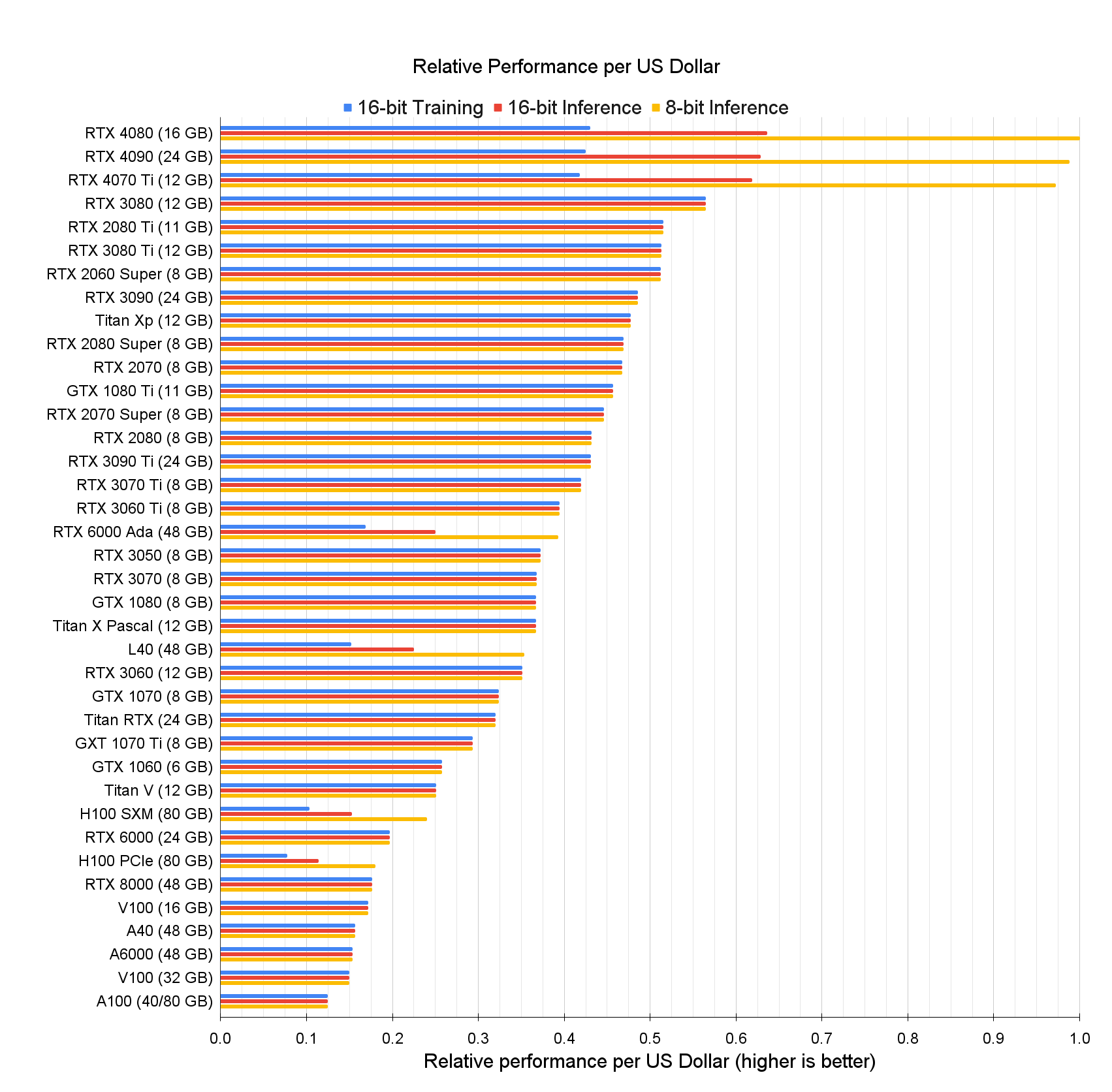
- Performance of GPU per dollar in training and interference (running a model): click
- How to check whether the model is instrumental or vocal?
Q: Are VR Arc models also grouped between instrumentals/vocal models, or it's just MDX-Net models?
A: The moment you see Instrumental on top (and Vocal below) in the list where GPU conversion is mentioned, you know it's an instrumental model.
When it flips the sequence, so Vocal on top, you know it's a vocal model.
Same happens for MDX and VR archs.
Q: [How to] have UVR automatically deleting the ensemble result folder after processing a song.
A: Go to settings, ensemble options, uncheck "Save all outputs".
- You can perform the Manual ensemble on your own already separated files (e.g. from Colab) in UVR5 under "Audio Tools”. Just ensure that files are aligned (begin in the same place). Sometimes using lossy files can mess with offset and file alignment.
- Furthermore, you can use Matchering in Audio Tools, e.g. to fit muddy results without residues, to the separation with more clarity, but containing residues you want to get rid of. Just use file without residues as target,
- If you have crashes on “saving stem” uninstall odrive
- Q: An option to add the model's name to the output files (this existed in a previous version of UVR but now it's gone) it was really useful when you needed to test multiple models on the same song
A: It's still there under additional settings "Model Test Mode"
- Q: I want to separate an audio from a video (input is still empty when I choose a file)
A: Go to General Process Settings>Accept Any Input
- Q: First time trying the ensemble mode and I used the VR Models: "De-Echo-Aggresive, De-Echo-Normal, DeEcho-DeReverb, DeNoise" now the outputs confuse me. In the folder called "Ensembled-Outputs" there are many files which are from each of the models. Outside that directory are 2 wav files, one says Echo the other No Echo. Isn't the ensemble mode basically a wav file that goes through each model and saves a final wav file after it went through all the models listed?
A: The two files outside the ensemble folder are the final ensembled files.
The folder is all the separate outputs from each model (you've enabled that in settings)
Q: Those files are final after they went through all the models, right? Not just the DeEcho model.
A: Yes
Q: I am just suspicious of the naming, I see at the time, and it makes sense that the files outside the directory are the final version although are they after all the models or just 1 model.
A: The naming is just whatever stem is assigned to the models, in your case all the models output echo and no echo file
so the final ensemble files will have that in the name
- Q: What is this "band" that I keep seeing in the spectrograph of tracks that I've isolated with x-minus?

A: MDX noise - a noise it produces no matter what. In UVR you can use denoise standard/model in options>Advanced MDX-Net it will do exactly what the below describes:
You can either use UVR De-noise model or isolate the track twice. Once normal one and already inverted,
then you add the results of normal-inst, inverted-inst, reinvert the inverted-inst, merge both normal and reinverted-inst.
The merged will be without noise, but 6 dBs higher - so lower the gain accordingly, and you'll get the same, just no noise. Repeat that for vocals obviously.
- Q: voc_ft doesn’t have any spectrum above 17.7kHz. How to restore it, and have e.g. 48kHz or 96kHz output like the input file has?
A: Turn off “Match Freq Cut-off” but it copies the remaining frequencies from the original, leading to possibly more noise.
“if you want true 96 kHz you need to manually lower the rate for 44100 Hz or less since the models themselves are 44100 Hz”
- It can happen that VR models using 512 window size can crash on 4GB cards, but 272 will be fine, although it will take more time
Q: “I have tried everything and also googled a lot, but UVR with MDX-Net is producing me this type of noise in every sample I have tried, that was not in the recording before. Anybody have an idea what can cause it?”
A: “It’s just part of the architecture. Either run it through a denoise model or run it through it twice with the second time the sound being phase-inverted”
“Enabling Denoise Output should do the trick. I use the Denoise Model option, seems to work quite well, to my ears, at least”
Q: “Is there any way to fix the uvr bve model saying "vocals" on the bgv and "instrumental" on the lead vocal file? It's unbelievably annoying”
A: Change primary stem from whatever it is set to the opposite in model options (screenshot)

Q: Matchering gives errors with long files.
A: 14:44 input length limit for both target and reference audio is set, and sth slightly above it caused error (probably a bit above 15 mins, so maybe 15 minutes is a limit).
If you see the error log, it will specify whether the reference or target file is too long, but the limit is the same for both.
Q: “Is there any way to batch-process multiple different models on the same file?
A: Yeah, ensemble, turn individual outputs on [in options], you'll have the same song over and over, each with a different model name attached, all saved before the final min/max/avg mix”
If you drag and drop many files at the same time into the input field and save intermediate files in options, you don't have to do manually start separation for every song.
The feature to save intermediate files is probably enabled by default in options>Choose Advanced>Ensemble>Save all outputs
IDK if "Model test mode" in Options>Additional is necessary for it (Settings Test Mode can be additionally enabled too, just in case something gets overwritten by accident if you change settings).
So you can simply use Ensemble to pick all models you want to batch process, and using drag and drop, to separate all songs you want, using all models you picked in the Ensemble, and probably intermediate files (so from the models) will be saved rather intact, no matter what ensemble algorithm you'll use. You can make a manual ensemble with any algorithm with existing intermediate files later.
- "Invalid buffer size: 17.34 GB" (Mac ARM) when using demucs_ft
Try to uninstall and make a clean installation of UVR.
Consider also using the latest Roformer patch.
(4-5 max ensemble explained moved to MDX settings)